PLEASE NOTE
The download of Microsoft Office is based on University Card status – check your University service entitlement here:
https://help.it.ox.ac.uk/card-and-it-service-entitlements
https://help.it.ox.ac.uk/card-and-it-service-entitlements
NB – Unfortunately, the University is unable to provide licences for any Microsoft products to staff and academics with University Card status “Retired”.
If you are entitled to a Microsoft licence then you will be able to download a copy of Microsoft Office using the instructions below.
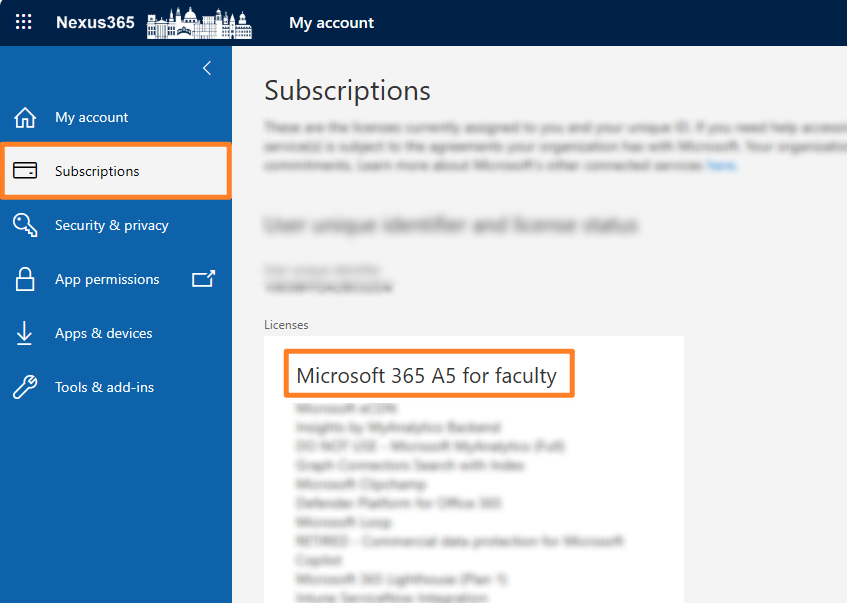
NB – you need a Microsoft A3 or A5 licence to install the full desktop version of Microsoft Office.
Getting Microsoft Office
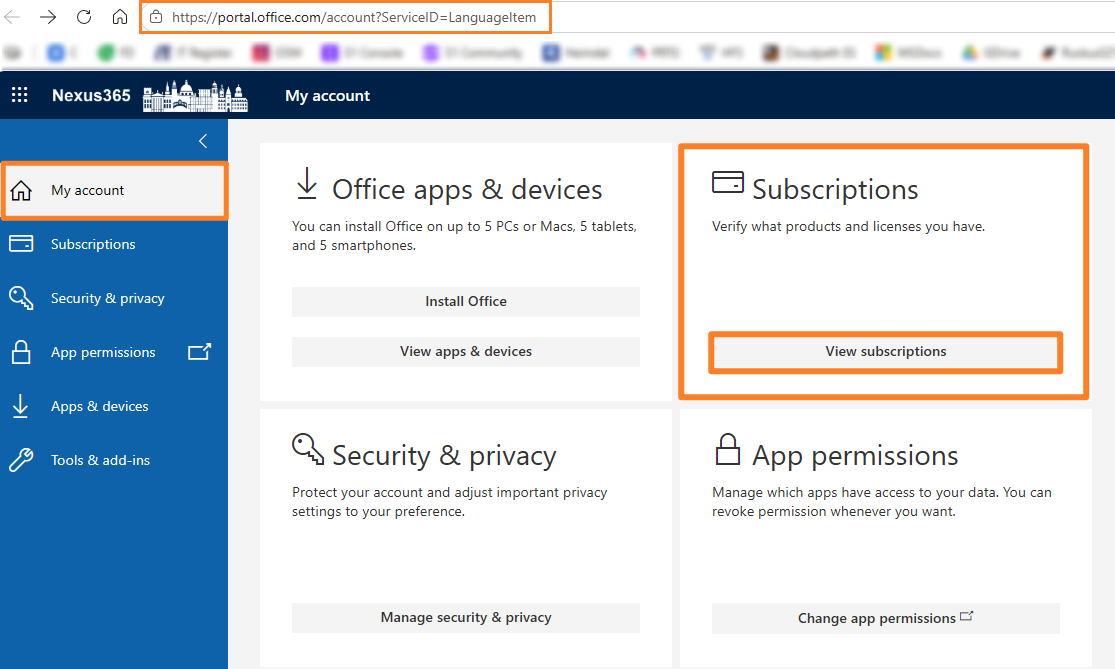
- Head to the Microsoft Office portal and login using your OXFORD SSO credentials – https://portal.office.com/account?ServiceID=LanguageItem#home
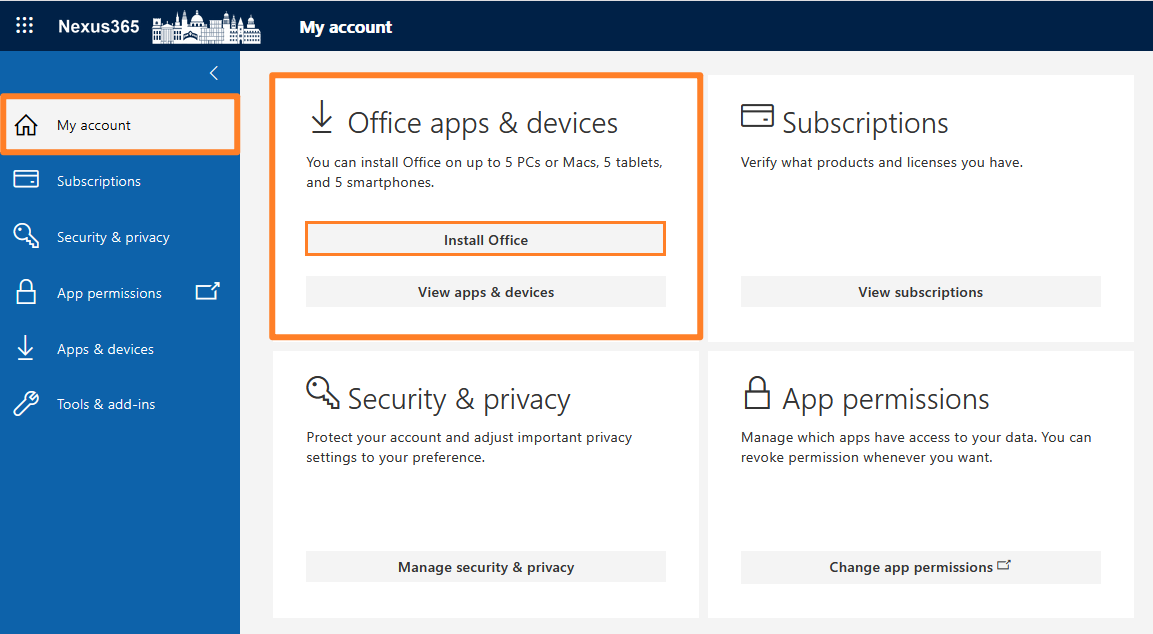
- Now under Office apps & devices click Install Office to download Microsoft 365 Office apps to your computer. Once downloaded double-click the installer file to install.
Check your Licence type
You can also check which Microsoft Subscription Licence you have been allocated by clicking the View Subscriptions button.